Showing posts with label Gmail customer service number. Show all posts

Sunday, 8 March 2020

Save Gmail Emails with Attachments By Using 3rd-party Gmail Backup Tool

In this post, let us talk about the best strategies to backup Gmail messages with attachments to your
hard drive, streak drive or PC.

There are such a large number of clients of Gmail email customers around the globe. Much of the time,
users need to make a backup of their essential Gmail emails and save it somewhere else. Such as, some
mails contain sensitive data regarding business deals, legal info or any personal data. You may wish to
create a backup in case if you want to change to some other email service provider, for example,
Outlook, Gmail, Yahoo and many more.
Now and again, you may want to backup the whole email locally on to your flash drive, external drive
or framework.
Image result for Save Gmail Emails with Attachments By Using 3rd-party Gmail Backup Tool
Along these lines, without wasting any more time, let us talk about the simple techniques that
explained by Gmail Phone Number to archive or save Gmail messages with attachments to a
hard drive, flash drive or other outer drives
Best Ways to Save or Backup Gmail Emails with Attachments to PC or Outer Drive\
 Use 3rd-party Gmail Backup Tool
The above technique is long and time taking strategy with regards to various Gmail files that
should be saved. We would suggest you to utilize a 3rd-party Gmail Backup Tool to save Gmail
email messages to the PC.

Image result for Best Ways to Save or Backup Gmail Emails with Attachments to PC or Outer Drive\

This Gmail Backup Tool allows you to export information from Gmail account such as Contacts,
Calendar, Google Drive information to the PC, outer hard drives, USB drive, and so on. The Gmail
emails can be straightforwardly imported to Outlook, Yahoo, and so on the two Windows and Mac
OS. This brilliant Gmail Backup device enables clients to export Gmail emails to PDF, EML X, PST,
HTML EML, MBOX, and other file formats.  
Backup Gmail messages with attachments to the PC framework, external h ard disk or USB. The
tool is planned with an easy to use GUI and is anything but difficult to utilize. This tool works
admirably for the two Windows and MAC clients.
Go Through the Below Steps to Utilize the Gmail Backup Software:
Image result for Save Gmail Emails with Attachments By Using 3rd-party Gmail Backup Tool

1.      At first, launch the Gmail Backup Tool on your framework.
2.      Now pick the file format you want to save the Gmail messages into.
3.      Then find the location you wish to save the Gmail email messages with every one of the
attachments.


4.      Use the Date Range Feature to choose Gmail documents for backup.
5.      After that, pick the Naming Convention alternative to rename the resultant messages after
backup.
6.      Tap on the OK to close the app.
For more tips and tricks regarding the above, directly call on Gmail Contact Number UK team.

Tuesday, 24 December 2019

Solve Sync Error with Gmail Android App Immediately

Gmail client application is an outstanding app used by a huge number of people for their personal as well as business purposes. It is an extraordinary built-in application for email lovers who depend on email messages for their everyday work.The expert Gmail helpline number UK helps users in syncing and receiving new mails immediately.


In any case, at times users are facing problems in receiving and sending their messages due to sync problems in their Gmail android application which may hamper their work. So as to fix this issue, you can go through various steps and solve the errors linked to your Gmail Android app in a flash. 
In Case if Gmail isn't Syncing Consequently, you may face the following issues:
Image result for Step by Step Guidelines to Solve Syncing Errors With the Gmail Android
 ·         Nob able to send an email message, or mail is stuck while sending to another
·         Getting Account not synced blunder
·         Not loading or getting another mail
·         Can't open or read them in your account mailbox
·         Your Gmail inbox not updating or refreshing.
·         Unable to getting notifications for new emails in your account mailbox
·         The application you used is too slow.
Step by Step Guidelines to Solve Syncing Errors With the Gmail Android 

Image result for Solve Sync Error with Gmail Android App Immediately

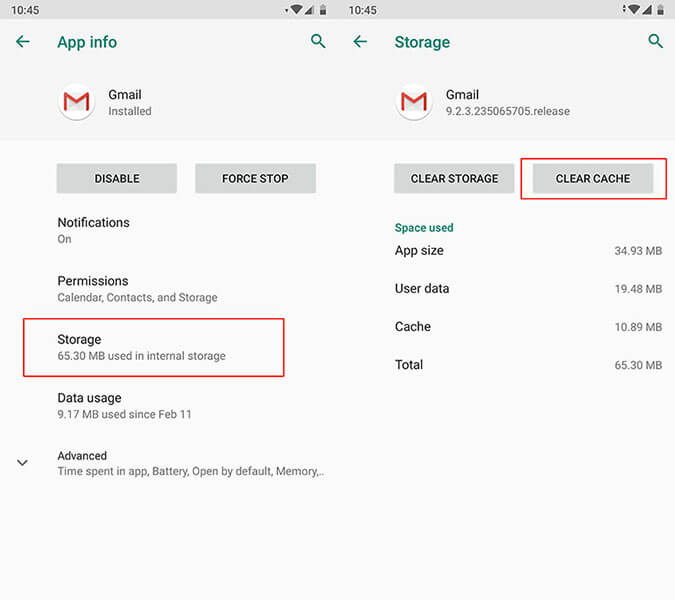
1.      If you're having notices concerns, then you have to check your Gmailnotifications settings appropriately.
2.      Now you have to check that you're connected to the best web connection.
3.      It may happen that your internet association doesn't work. So to check that you're associated, you have to visit a site in your mobile internet browser.
4.      After that you can check sync settings on Gmail application.

Image result for Solve Sync Error with Gmail Android App Immediately
5.      Then depending on your sync settings of a Gmail,account, the Gmail,application probably won't confirm for new mail.
6.      Now you can open the Gmail application and afterward click on the menu tab.
7. Just tap on the settings option. In case you have more than one web-mail account, just pick the account you're not getting a mail for.
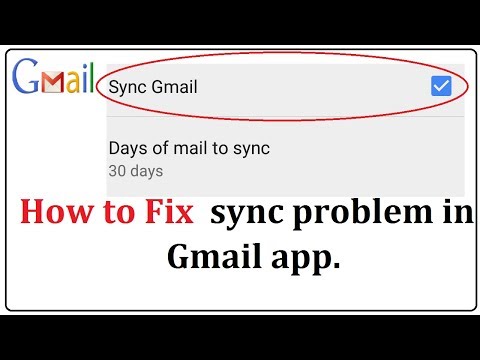
8.      Here you need to ensure that you sync Gmail is checked.
9.      After this check your sync settings on the cell phone.
10.  On numerous phones and tablets, you can disable sync for each application without a moment's delay. 


For getting more info and solutions to solve the syncing problems of your Gmail application, then you
can simply get associated with a leading Gmail Phone Number and get help from the technical experts to resolve this issue quickly.

Monday, 25 November 2019

Logout to Your Gmail Account on Desktop and iPhone Application

Nobody likes being snooped on.
From more youthful siblings eavesdropping on our mobile conversations to the person
by you on the train reading your text messages behind you, it can be very frustrating. 
Fortunately, it's very easy to guarantee that nobody has access to your own Gmail emails. Regardless of whether you're utilizing the PC at the library, a shared PC or laptop with your family, or rapidly checking your messages on a friends iPhone, logging out is effort-less. 


Read this blog explained by the tech experts to Gmail Phone Number team and get the problem
solved.
Follow This Guide to Log Out of Gmail Account
At the point when you have to guarantee that nobody has access to your Gmail account, you could change your Gmail account password, or, in case you're on an open device, you can essentially log out. In addition to the fact that logging outs of Gmail support your digital security efforts, but on the other hand it's basic and should be possible in only a couple of steps.
How to Logging Out of Gmail Account 
·         At first, tap on your account photograph in the upper right corner
·         After that click on Sign out
For complete guide on how to log out of Gmail account on desktop and the iPhone application, continue reading.
Image result for Follow This Guide to Log Out of Gmail Account
On Your Desktop
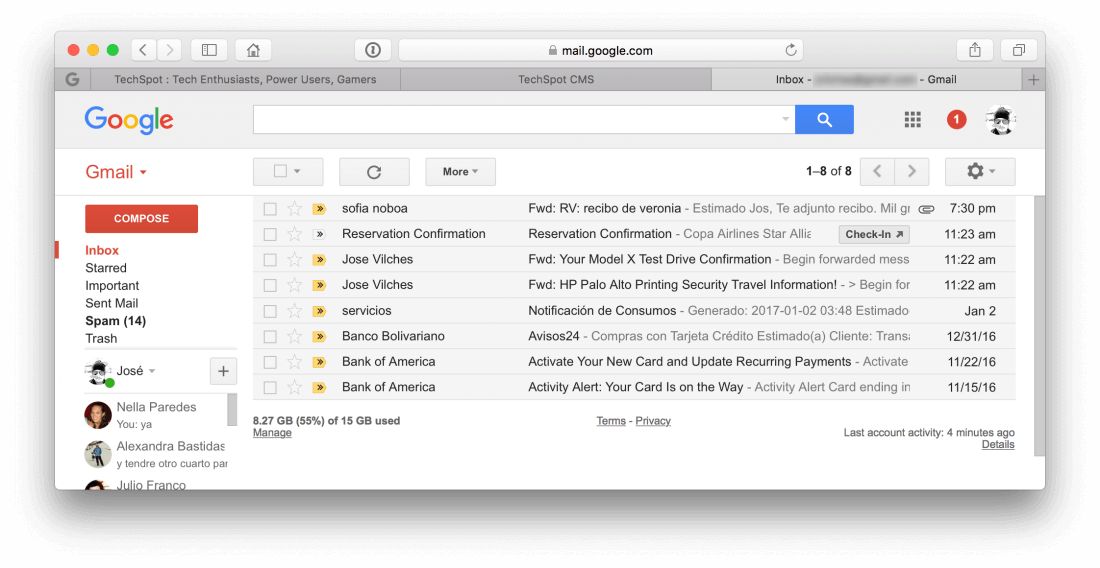
From the Gmail screen you can explore to your profile picture in the upper right hand side corner. Afterward you have to click on Logout. Next, press the Sign out button.

Image result for On Your Desktop

On Your iPhone Application
The way toward logging out of your Gmail account is like the way in which you would on desktop. At the point when you're signed into the application, just click your profile picture .

You'll at that point see all Gmail accounts you have logged into this gadget. Pick Manage accounts on this device.
After this, under the Gmail address of the account you'd prefer to sign out of, simply choose Remove from this gadget.
The Gmail application will at that point confirm you need to delete the account from this device,
which will log you out of the online account.

Log out and Continue
Image result for Log out and Continue

Logging out of Gmail takes only a couple of minutes to do, yet it could save yourself the despair of another person getting to your account and having the option to read your personal email messages. Or on the other hand, for my situation, see when all of online shopping orders will be conveyed. 

Add caption
Well, if you require the help of tech experts to follow this above guidance to fix the issue.
Ask technical support team to help you by Gmail Helpline Number UK you will reach to
customer service group. This number is 24/7 available to fix the issue of Gmail.


How to change AOL password on iPhone?

AOL is used widely in various firms and organizations for both internal and external mail transfer. It was once known as Formerly America On...